When you have custom code, you may run into GitHub conflicts. This happens when your code and the core code diverge.
Sometimes there may be conflicts between code that changed in the new version and code/configuration changes you’ve made yourself. When that happens, you’ll see a message during the upgrade like:
CONFLICT! Merge conflict in plugins/channels/channels.rb
You’ll need to edit the files in question to resolve the conflict. You’ll see lines like this where there are conflicts between your code and the main Ares code:
Some code.
<<<<<<< HEAD
your original version will be in this section
=======
the upgraded main Ares code will be in this section
>>>>>>> master
Edit the file manually to choose which version you want, and get rid of all the <<< >>> junk. The final file should look clean, like:
Some code.
your modified code
Sometimes, rather than dealing with the conflict it’s easier to just copy/paste the code for that file from GitHub and start fresh. Once you have the new main Ares version, you can redo your custom changes.
If you run into trouble resolving conflicts, don’t be shy about asking for help.
Sometimes, the copy of the code that lives on the server can diverge from the copy in GitHub. Typically this happens when you make changes on the server directly, without a GitHub fork.
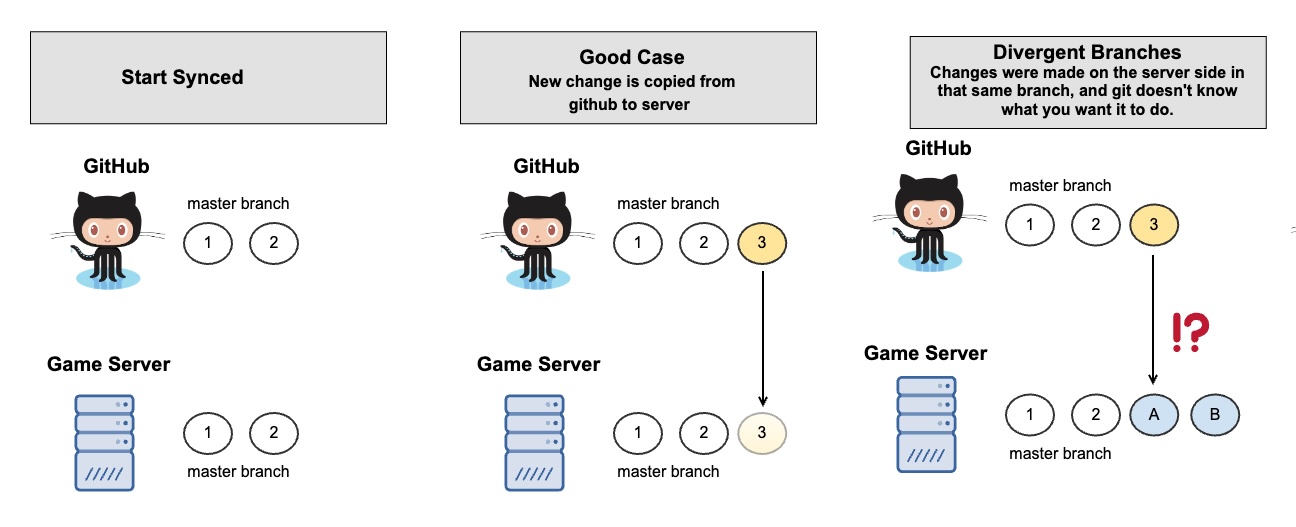
If this happens, you will see an error during upgrade like:
Your branch and 'origin/master' have diverged,
or
You have divergent branches and need to specify how to reconcile them.
If you see one of these errors, you need to sync up GitHub. How you do this will depend on whether you have any custom code (including community plugins).
If you are absolutely sure that you have no custom code (including community plugins), you can reset your server to use the core code.
cd aresmush
git reset --hard origin/master

then

cd ../ares-webportal
git reset --hard origin/master
If you’re not sure if you have custom code, you can compare your game’s code to core:
cd aresmush
git diff origin/master

then

cd ../ares-webportal
git diff origin/master
If you get spammed by file differences, your code is different. If the command just completes silently, you have no custom code.
With custom code, it’s a bit more complicated. You need to sync up the versions without overwriting your own code.
git log command to see the commit version that corresponds to “origin/master”.commit ee72d07118e3fcf4d4a26daf04d043746a183ee5 (tag: v2.12.0, origin/master)
Author: Linda N <lynnfaraday@users.noreply.github.com>
Date: Sun Jun 14 02:15:16 2026 -0400
Copy that big ugly hash number and do git reset UGLYHASHNUMBER.
Run git stash to stash any of your own code changes.
Run git pull to get the latest server code.
Run git stash apply to put your changes back. You may need to resolve code conflicts if some files changed in both your code and in core.