
Virtual Machine (VM) software will let you run a full instance of Ubuntu Linux within your local PC or Mac. There are several popular VM software packages out there, including Oracle VirtualBox.
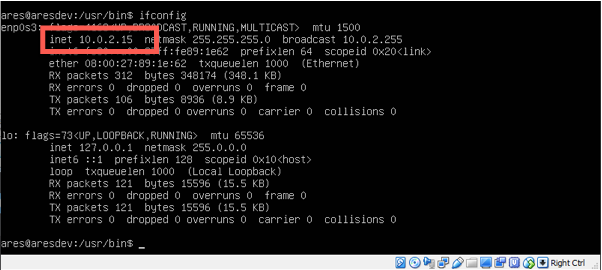
You’ll want to create a new VM using the Ubuntu base image. From there, you can install the game using the same basic process described in the “Set Up the Server” and “Install the Game” steps DigitalOcean Self Install tutorial. Use the VM’s Private IP for your hostname. You can usually get this from the ifconfig command in the server shell.
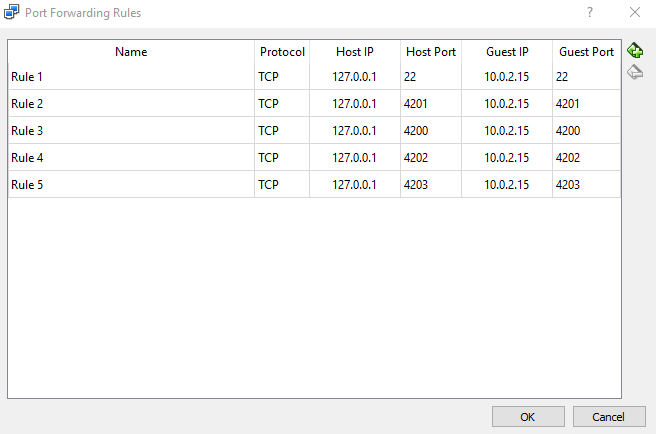
To connect to a game running on the VM, you may need to set up port forwarding. This makes it so when you go to localhost:4200 on your PC the traffic is sent to the VM. For example, you could create ports to forward from localhost (127.0.0.1) to the VM’s Private IP (Guest IP) for ports: 22, 4200, 4201, 4202 and 4203. To set this up, you will need to find the Port Forwarding settings on your VM. Details may vary for your system. Once port forwarding is enabled, you can connect to the game/web portal using localhost:4201 and localhost:4200.